
Workspace
Everything you work on, filed the way you think about it: Group › Project. A group is a client, a team, or an area; a project inside it is one codebase, with its own agent sessions, notes, boards, automations and issue sync.
Group › Project
The Workspace sidebar is a two-level tree:
- Group — the top level. Every project lives in one. General is the group your projects land in until you file them elsewhere. Groups you create are labelled PRIVATE and sync to your account; org groups arrive from your organization, are labelled ORG and are read-only locally. A group can own notes, boards and automations of its own — the ones that aren't about a single codebase (a client's meeting notes, a cross-project backlog).
- Project — one folder's worth of work inside a group. It holds agent sessions, notes, boards, automations, and the Git-host sync for that repo.
Two projects in different groups can share a name — Acme › api and General › api stay separate. A folder, though, belongs to exactly one project: linking a folder that another project already owns is refused, and the dialog tells you which project holds it.
Each project gives you:
- Sessions — agent runs rooted in the project's folder (see Agent)
- Board — a synced Kanban view of issues from your Git host
- Reviews — open merge/pull requests, with full diff, comments, and approve/merge actions
- Notes — freeform notes scoped to the project
- Automations — scheduled agent runs (a group can have these too)
- Co-workers — AI personas you can assign to tickets or ask to review a merge request
Group boards vs project boards
A board on a group has no repository behind it — it's for planning, not code. Group boards keep cards, columns, comments, coworker chat and notes, but the code actions (create issue on the host, push, raise a PR, PR review) are hidden with the hint "Group board — code actions live on project boards." Move a card to a project board when it needs code.
A project board whose project has no folder linked yet behaves the same way, with Link folder first instead — link the folder and the actions come back.
Meetings
Recorded meetings can be filed on a group or on a project, so a client's calls sit next to that client's projects. A group can also be scoped to meetings only — a meetings collection, used for groups that exist to hold calls rather than code. See Meetings for recording and transcription.
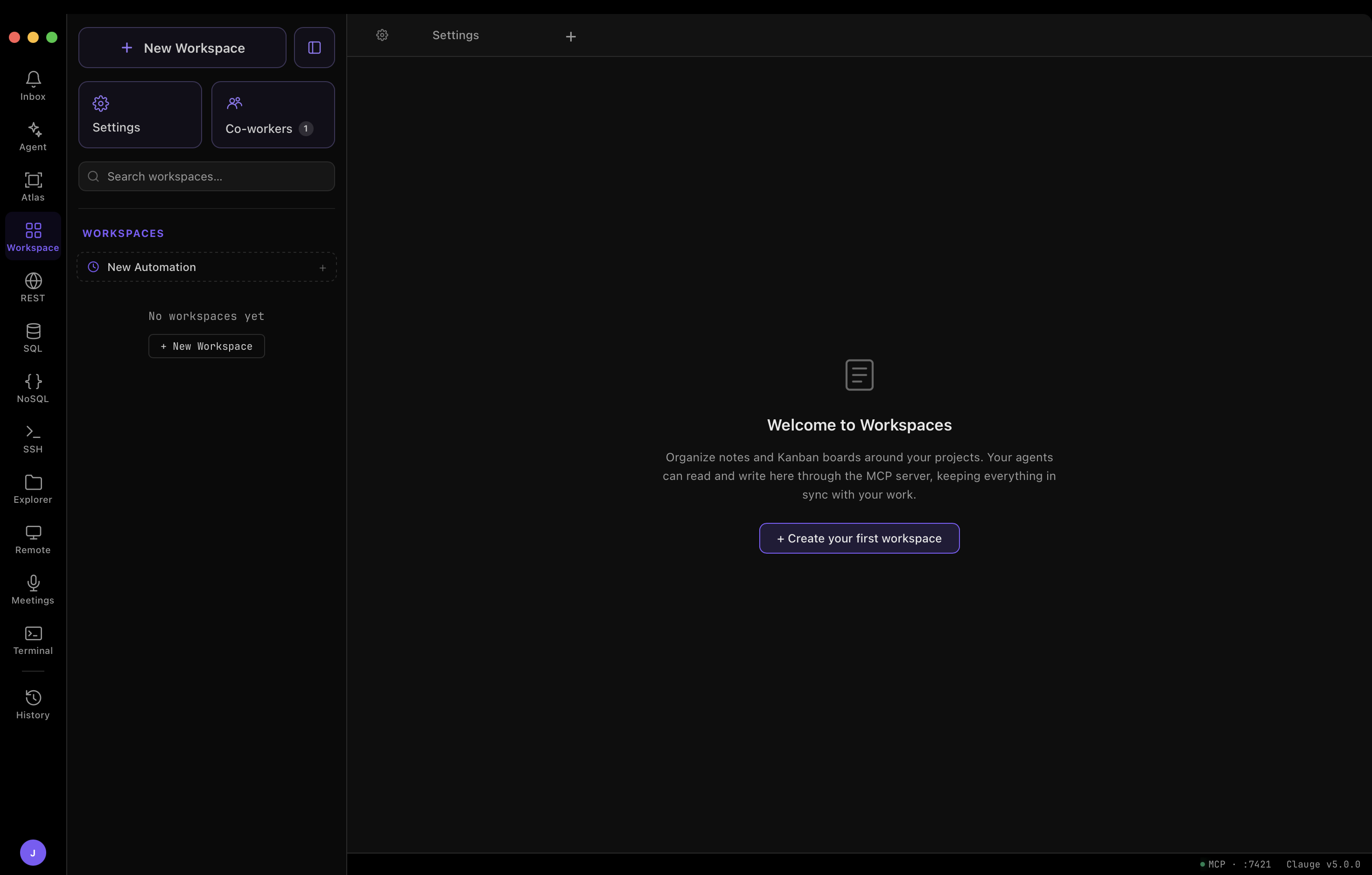
Create a group
Click + New group in the sidebar (or the + New group button in the New project dialog), type a name, and press Enter. A group is nothing but a name until it holds something.
Create a project
- Click + New project — from the sidebar, or from a group's own row (which pre-selects that group).
- Fill in:
- Group — which group the project is filed under. Org groups aren't listed; an admin assigns their projects.
- Folder — Browse to the local folder. Optional: a project with no folder is a perfectly good place for notes and boards, and you can link one later. Clauge tells you whether the folder is a git repo and shows its remote and branch.
- Name — shown as
Group › Nameunder the field, so you can see the full path before you commit to it.
- Click Create project.
Link a folder later
A project with no folder is marked unlinked: agent sessions, issue sync, pushes and PRs all need a checkout. Link one from the project's ⋯ → Link folder…, from the Link folder button on the project's home page or its board, or from Edit project. Clauge canonicalises the path (symlinks, worktrees) before binding it, so linking from inside a worktree resolves to the parent repo.
If the folder's git remote doesn't match the project's, or another project already owns it, the dialog says so and names the conflicting project instead of silently re-pointing anything.
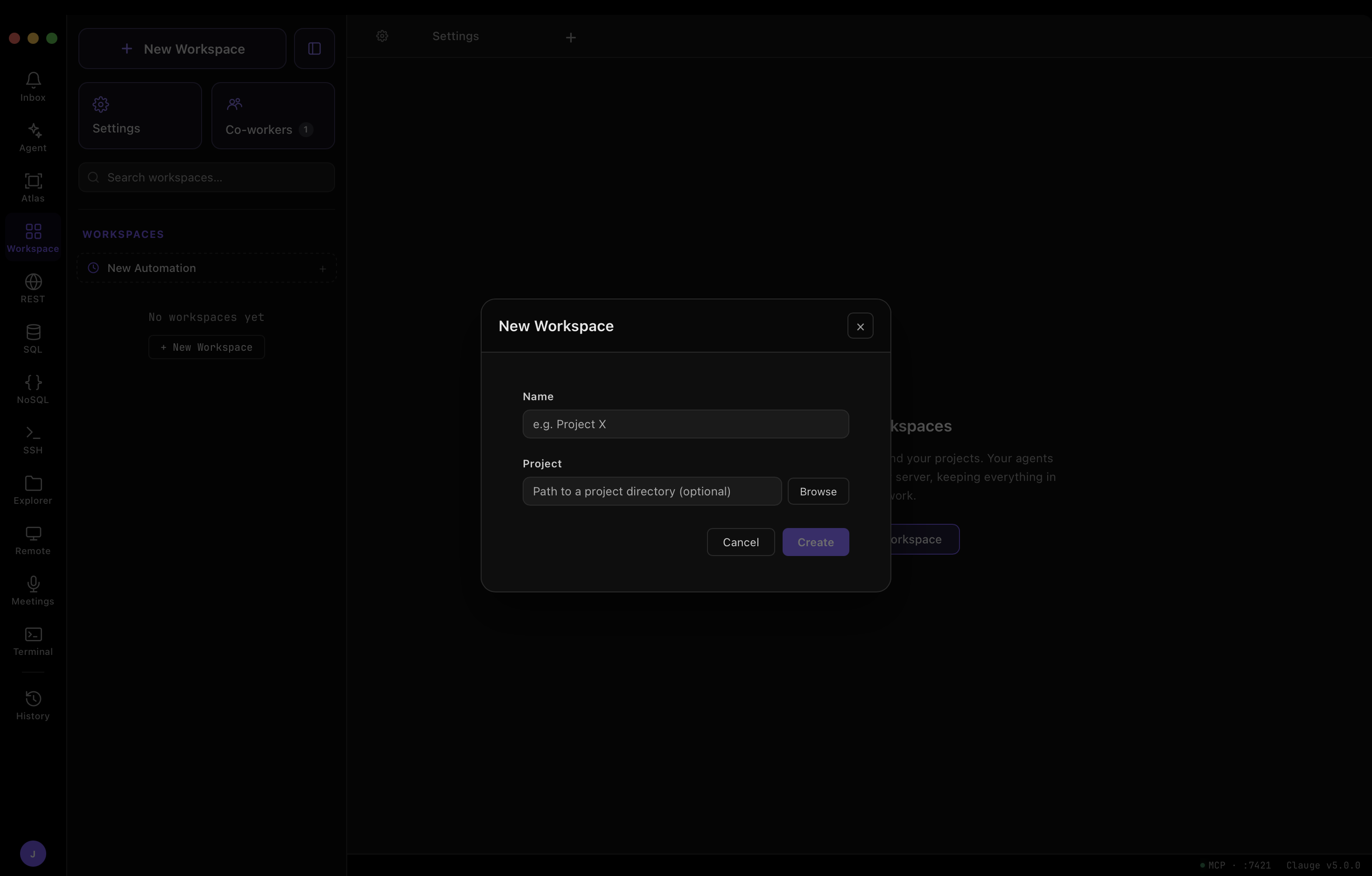
The new project appears under its group in the sidebar, with an auto-created Board tab (named after your default issue board, e.g. "Tasks"). Click the project's own row to open Project Home — its group, link state, remote, branch, open-PR count, and every session, note, board and automation it owns, each row opening the same tab the tree would.
Connect a Git host
Boards and Reviews need a Git connection to sync. Configure this once — it applies across every project.
Go to Settings → Workspace. It's sub-tabbed: General, Groups & Projects, Agents (the old Agent settings, merged here), Integrations and Automations.
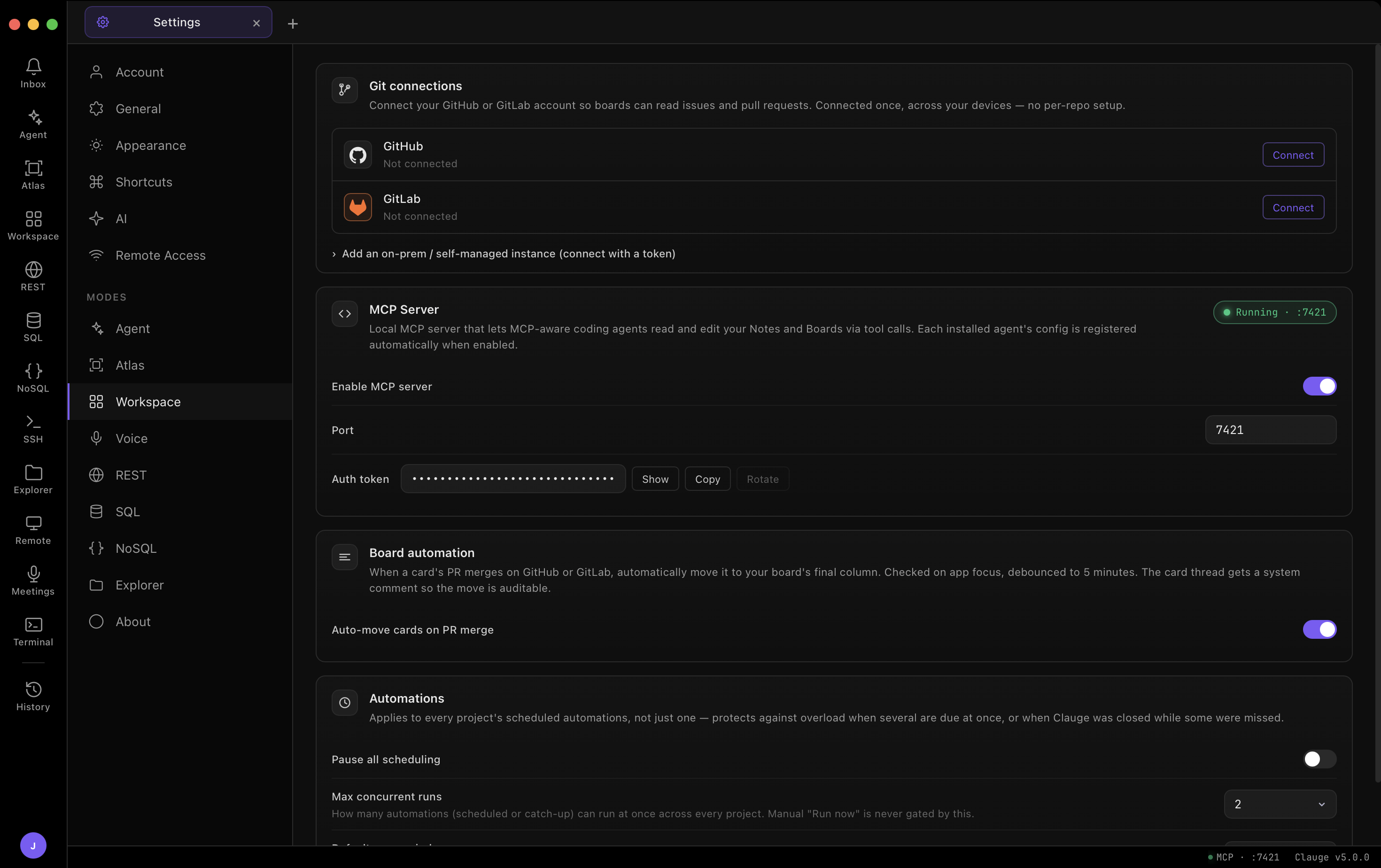
Git connections
Under Integrations:
- GitHub — click Connect and authorize via OAuth.
- GitLab — click Connect and authorize via OAuth.
- On-prem / self-managed — under On-prem instances, click Add another on-prem / self-managed instance and enter your instance URL (e.g.
gitlab.inspironlabs.com).
Once connected, an instance shows as ● Connected along with the authenticated account, and can be Disconnected at any time. A connection is made once and is available across all your projects and devices — no per-repository setup required.
MCP Server
Also under Integrations. Lets MCP-aware coding agents (Claude, coworkers, third-party CLIs) read and edit your projects, notes, boards and meetings directly via tool calls — see MCP Setup.
- Enable MCP server — turns the local server on/off. Each installed agent's config is registered automatically when enabled.
- Port — local port the server listens on (default
7421). - Auth token — token agents use to authenticate. Show reveals it, Copy copies it, Rotate issues a new one and invalidates the old.
Board automation
Under Automations:
- Auto-move cards on PR merge — when a card's linked PR/MR merges, automatically moves the card to the board's final column. Checked on app focus and debounced to 5 minutes. Adds a system comment on the card thread so the move is auditable.
Using the Board
Open a project's board tab (e.g. Tasks) to see:
- Columns grouped by status (Backlog, Todo, In Progress, In Review, etc.), each showing a card count.
- Cards showing the ticket title, ticket number, assignee, last-updated time, labels (e.g.
Status::QAInProgress), and linked MR/PR number. - Add a card at the bottom of any column to create a new ticket directly on the board.
Toolbar
- Instance selector — shows the connected Git host for this board; switch instances if more than one is connected.
- Sync — manually re-syncs the board against the Git host. Status shows Synced just now, Syncing…, etc.
- Search tickets & PRs — full-text search across the project's tickets and merge requests.
- Board / Reviews — switches between the Kanban board and the Reviews list, each with a live count.
- Label / Priority / Has PR — filters to narrow the visible cards.
- Group: Status — changes how cards are grouped/columned.
- Compact — switches cards to a denser, single-line layout.
Reviews (merge/pull requests)
Click the Reviews tab to see open merge/pull requests for the project, grouped under Other open with a count badge. Each row shows:
- MR/PR number and title
- Source → target branch and author
- Time since last update
- Lines changed (
+added/-removed) - Status badges — e.g. Open, Review, pipeline state icons
Toggle between Open and All to include closed/merged requests.
Reviewing a merge request
Click any review to open its detail pane:
- Conversation — assignees, reviewers, labels, milestone, description, and threaded comments
- Commits — commit history for the MR
- Checks — CI/pipeline check results
- Files changed — full diff
From the Conversation tab you can:
- Add/remove assignees and reviewers, including AI co-workers
- Add a comment — visible to everyone on the repo
- Submit a review — write a review summary (required if requesting changes), then choose:
- Comment — leave feedback without a verdict
- Request changes
- Approve
- Merge
- Ask coworker to review — pick a persona from Pick a coworker to have an AI co-worker review the MR and post a summary/verdict automatically.
Co-workers
Co-workers are AI personas with a fixed role and instructions. Assign them to cards or merge requests to get focused, consistent responses instead of re-explaining context each time.
Go to the Co-workers tab to see existing personas (count shown next to the tab), or click + New coworker to create one.
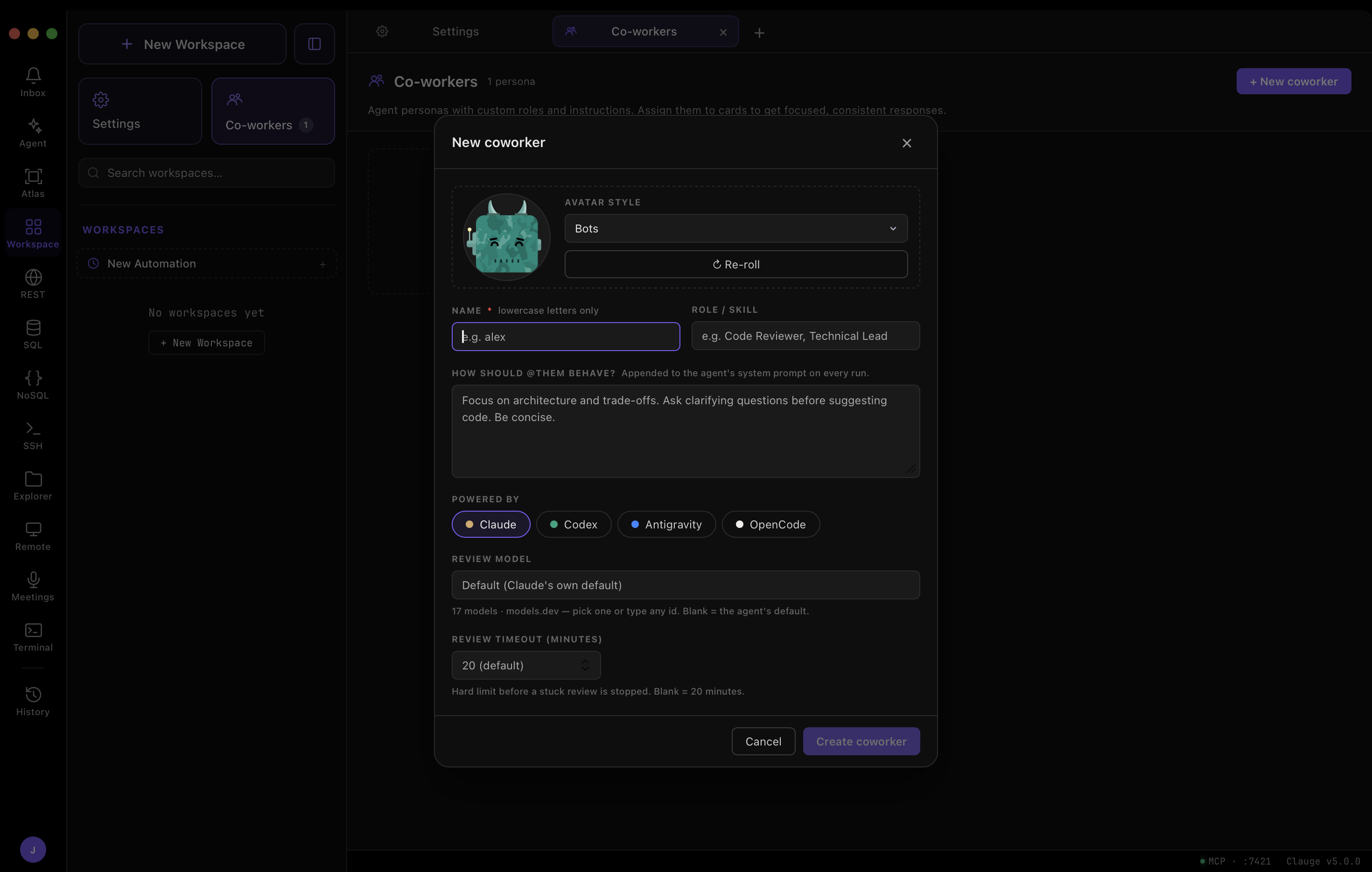
Creating a co-worker
- Avatar style — choose an avatar set (e.g. "Bots") and Re-roll to generate a new image.
- Name — lowercase letters only — used as the
@handle. - Role / Skill — short label shown on the persona card, e.g. "Code Reviewer", "Technical Lead".
- How should @them behave — free-text instructions appended to the agent's system prompt on every run — defines how the persona reasons and responds.
- Powered by — the underlying agent: Claude, Codex, Antigravity, or OpenCode.
- Review model — optional model override for reviews (defaults to the agent's own default).
- Review timeout (minutes) — hard limit before a stuck review is stopped. Default is 20 minutes.
Click Create coworker to save. The persona then appears wherever coworkers can be assigned — cards, MR reviewers, and the @mention picker in comments.
Managing groups and projects
Right-click (or use the ⋯ menu on) a group, project or board in the sidebar.
On a group:
- Rename / Colour — the group's label and accent.
- New project — create a project already filed under it.
- New note / New board — group-level surfaces, with no repository behind them.
- Delete group — only once it's empty; move or delete its projects, notes, boards, connections and collections first. That includes General.
On a project:
- Rename — rename the project or board.
- New note / New board / New session — add a surface or start an agent run.
- Link folder… / Unlink — bind or release the local folder.
- Move to group — re-file the project under a different group.
- Delete project — permanently removes the project. Clauge first shows what goes with it and asks separately before deleting any agent worktrees (that box is off by default). Nothing on the Git host is touched.